Color Extractor
How to use
- Press Upload your image or drop one on the page (JPG, PNG, GIF, or WebP). Until then, a sample photo shows how it works.
- Your palette appears with each color in HEX, RGB, CMYK, and the nearest Pantone. Click any value to copy it.
- Drag the sampling points on the image to pick exactly the colors you want, then export the palette.
Upload a photo, screenshot, or logo and get its main colors in HEX, RGB, CMYK, and the nearest Pantone. Drag the sampling points to fine-tune any color.
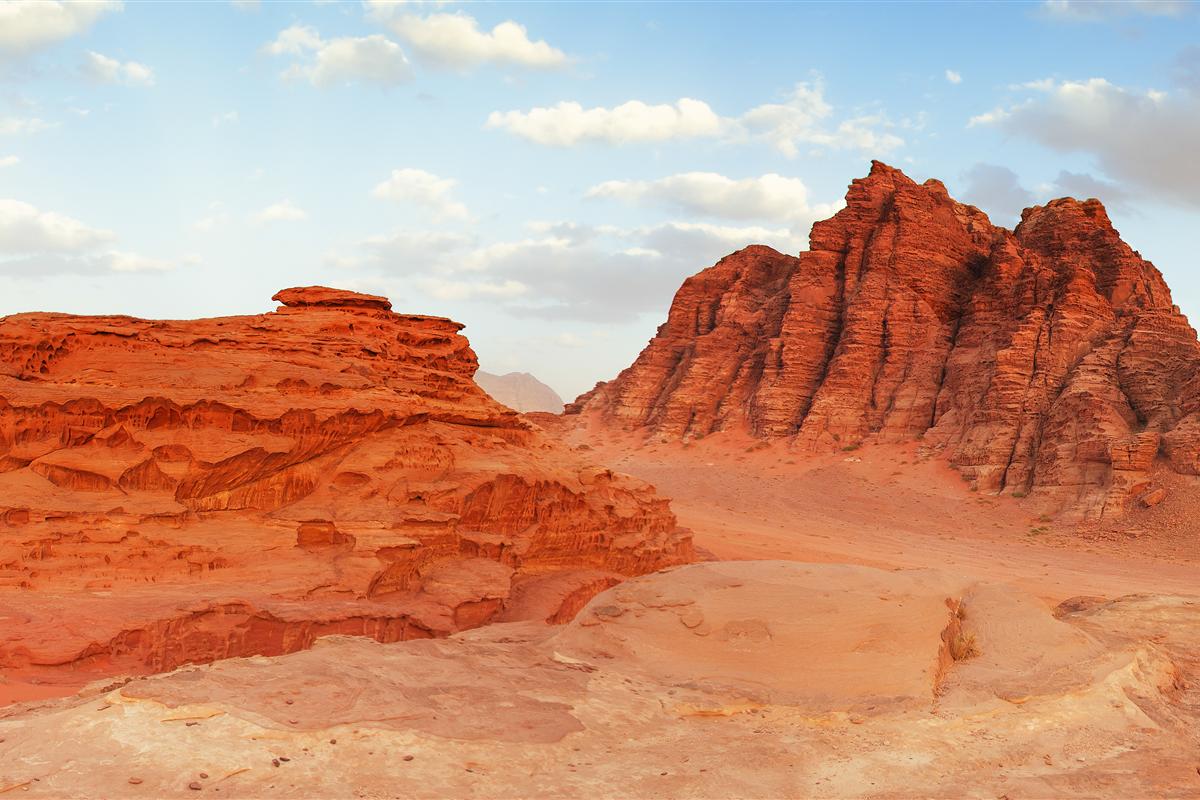
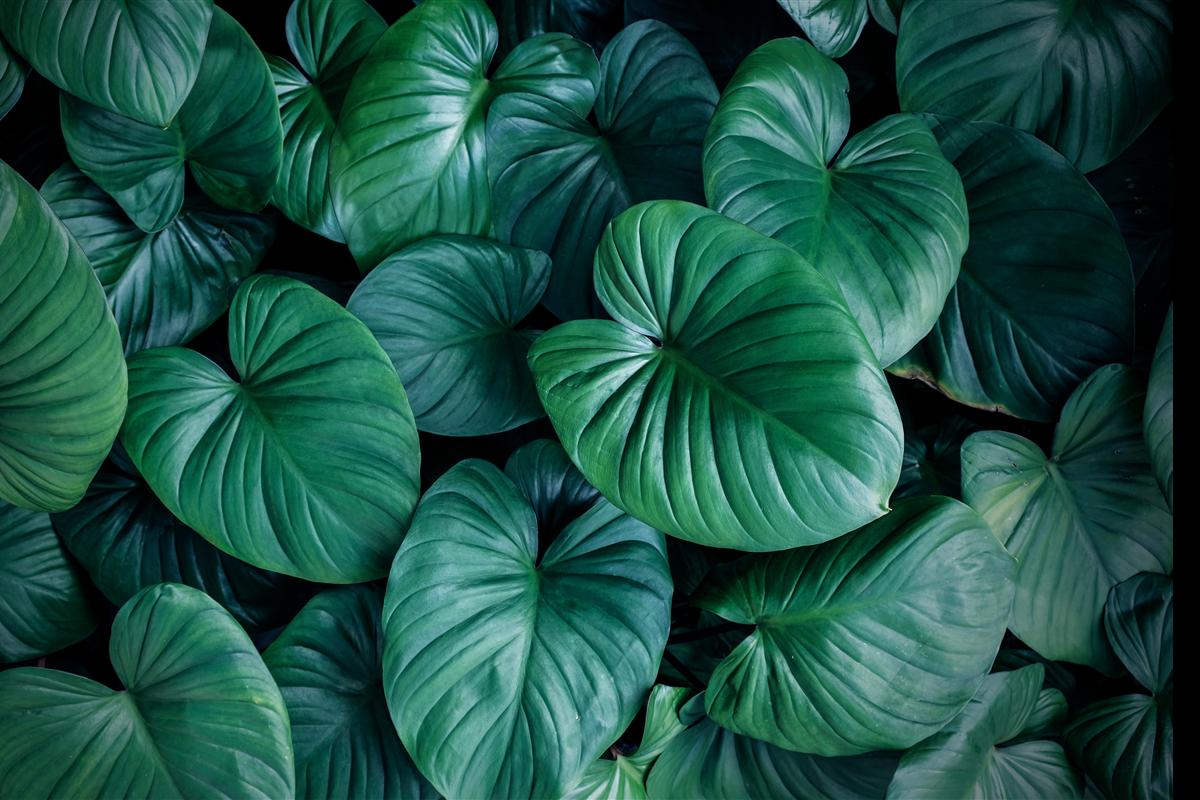
Upload any image and watch your palette appear instantly. Explore HEX, RGB, CMYK, and Pantone matches. Click to copy, move sampling nodes to refine the hues you want, or export everything when you're ready.

Download
Crop to what matters
Cropping out backgrounds and borders gives you the subject’s colors, not the wall behind it.
Sample flat areas
Put the points on flat patches of color, away from edges, shadows, and highlights.
Use the original file
Screenshots and heavily compressed JPGs shift colors slightly. The original PNG gives the truest values.
What files can I upload?
JPG, PNG, GIF, and WebP images.
Which download format should I pick?
ASE for Adobe apps (Illustrator, Photoshop, InDesign) and Affinity, .aco for Photoshop, SVG for a swatch card you can edit in Figma, PDF for a printable sheet, CSS (HEX plus OKLCH) for websites, JSON for code and design tokens, or .gpl for GIMP and Inkscape.
How accurate is the Pantone match?
It’s the nearest color in our Pantone list, measured by Delta E. Treat it as a starting point and confirm it against a printed swatch book.
What happens to my image?
It’s uploaded so we can read its colors, resized, and deleted automatically after about a day. We don’t use it for anything else.