Digital displays create color using three light channels: red, green, and blue. Each pixel contains
subpixels for these channels, and RGB values such as rgb(52, 152, 219) describe how
bright each channel should be. This system forms the basis of nearly all on-screen color.
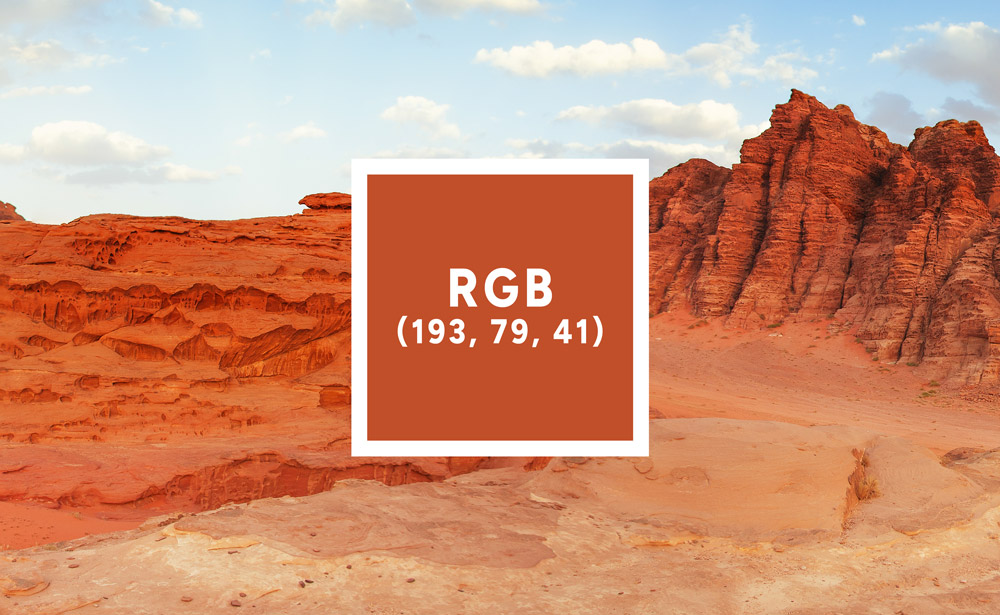
What Does RGB Mean?
RGB stands for Red, Green, Blue. Digital displays mix these three
primary light colors at different intensities to reproduce the full range of colors we see on screen.
Because RGB works by adding light, the system is considered additive color: all channels
at maximum produce white, while all channels at zero produce black.
How RGB Values Work
RGB values are written using three numbers:
rgb(R, G, B)Each number ranges from 0 to 255:
- 0 — channel is off
- 255 — channel is at maximum intensity
Examples:
rgb(255, 0, 0)       → red
rgb(0, 255, 0)       → green
rgb(0, 0, 255)       → blue
rgb(255, 255, 255)   → white
rgb(0, 0, 0)         → black
Most colors sit between these extremes. For example, rgb(193, 79, 41) is a warm reddish tone
with high red, moderate green, and low blue.
How Screens Create Color (Additive Mixing)
Each pixel on a display contains red, green, and blue subpixels. By controlling the brightness of each
subpixel, the device produces a combined color that the eye perceives as a single tone.
Values such as:
rgb(52, 152, 219)correspond to:
- Red: 52
- Green: 152
- Blue: 219
This combination results in a cool mid-blue commonly used in interfaces.
Displays operate in defined color spaces, most commonly sRGB or Display P3.
Two screens showing the same RGB values may look slightly different if their color gamuts or
calibrations vary.
RGB vs HEX
RGB and HEX represent the same information. HEX simply expresses the same channel intensities using
base-16 numbers:
#3498db → rgb(52, 152, 219)If you understand one format, reading the other becomes straightforward. Most design tools display both.
How to Interpret RGB Values
The three channel values offer clues about the resulting color:
- Higher R — more red influence
- Higher G — more green influence
- Higher B — more blue influence
Useful patterns:
rgb(200, 200, 200) → light gray (channels high and similar)
rgb(20, 20, 20)    → dark gray (channels low and similar)
rgb(200, 50, 50)   → desaturated red
rgb(50, 200, 50)   → saturated green
Why RGB Uses 0–255
Each RGB channel is stored using 8 bits of data:
2⁸ = 256 possible values (0–255)This mapping aligns directly with how hardware represents color intensity.
Color systems such as sRGB also apply gamma correction to ensure that equal changes
in channel values create visually even brightness steps.
What Is RGBA?
RGBA extends RGB by adding an alpha channel for transparency:
rgba(R, G, B, A)The alpha value ranges from 0 (transparent) to 1 (opaque).
rgba(52, 152, 219, 1)     → opaque
rgba(52, 152, 219, 0.5)   → 50% transparent
rgba(0, 0, 0, 0.2)        → subtle overlay
RGBA is widely used for overlays, shadows, UI states, and elements requiring controlled transparency.
Comparison: RGB vs RGBA vs HEX
| Format | Channels | Range | Typical Use |
|---|---|---|---|
| RGB | R, G, B | 0–255 | Solid on-screen colors |
| RGBA | R, G, B, A | 0–255, alpha 0–1 | Transparent UI elements |
| HEX | R, G, B (hexadecimal) | 00–FF | CSS, branding specifications |
Common Pitfalls
- Expecting identical results across uncalibrated displays
- Assuming RGB values are perceptually linear (gamma affects this)
- Using RGB for print (print uses CMYK)
- Choosing very saturated RGB values that exceed sRGB gamut
Where RGB and RGBA Are Used
RGB-based values appear in nearly all digital environments:
- CSS for web interfaces
- Design tools like Figma, Sketch, and Photoshop
- Mobile and desktop UI frameworks
- Game rendering engines
- LED displays and digital signage
Using RGB and RGBA in Practice
Most workflows rely on color pickers or sampling rather than typing values manually. Tools like
Swatching can extract colors from images, convert between formats, and generate
RGBA variations for UI states.
Hands-on ways to build intuition:
- Inspect elements in your browser’s dev tools
- Sample colors from a photo and compare their RGB, HEX, and HSL versions
- Create a button using
rgb()and an RGBA hover state - Compare how a color appears on different screens